
View a Gift Card Class Category
To view or edit the properties of a Gift Card Class Category:
-
Select Transactions from the top navigation bar, then select Settings > Gift Card Class Categories from the side navigation menu. The Gift Card Class Categories screen is displayed.
-
Optionally, enter a search string in the Search field. You can search for Gift Card Class Categories based on their Display Name or Internal Name. Click the Search icon. The screen is refreshed to show only the Gift Card Class Categories that meet your search criteria.
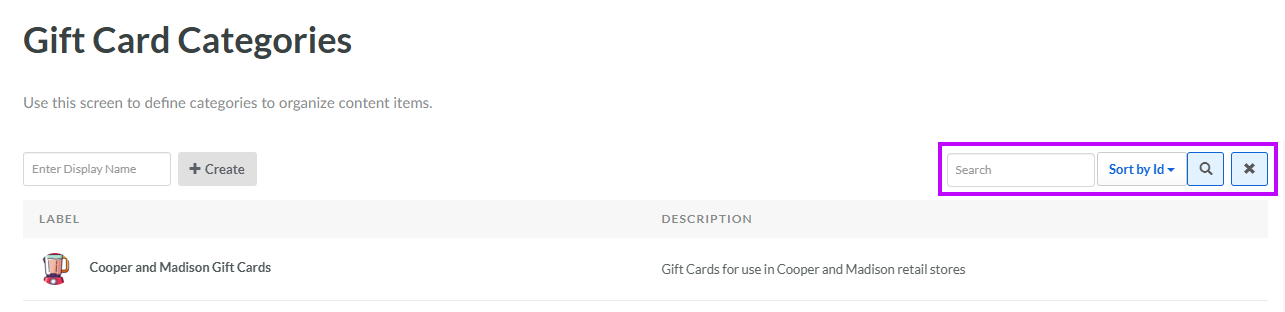
-
To sort the search results, select the desired sort order from the Sort By drop-down menu. The default sort order is by: Category ID.
-
Click the name of the desired Gift Card Class Category. The Edit Gift Card Class Category pop-up window is displayed.
-
Optionally, make any changes to the Gift Card Class Category properties. For more information on these properties, see Create a Gift Card Class Category.
-
Click Save.
